Building a Content Scheduling Marketplace App for XM Cloud

I kept getting pinged by marketers asking me to manually publish pages at specific times. XM Cloud has __Publish Date and __Unpublish Date fields on every item, but writing to them alone doesn't do anything you still need to trigger a publish job separately. And marketers can't do either without developer help.
So I built a Marketplace App that adds a scheduling panel directly inside XM Cloud Pages. Pick a date, click publish, done.
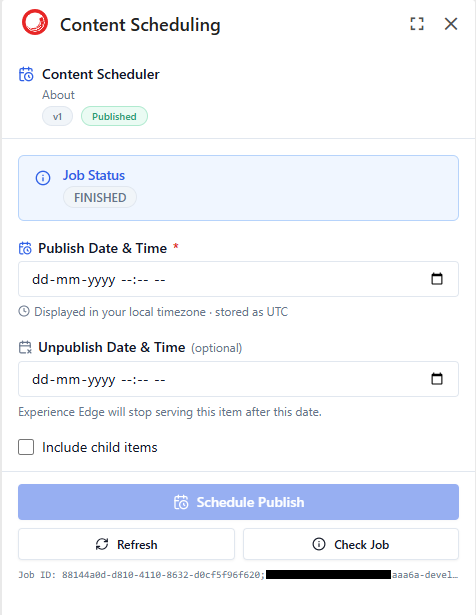
Code is on GitHub. This post covers how it works and what tripped me up.
Quick Answer: How Does Content Scheduling Work in XM Cloud?
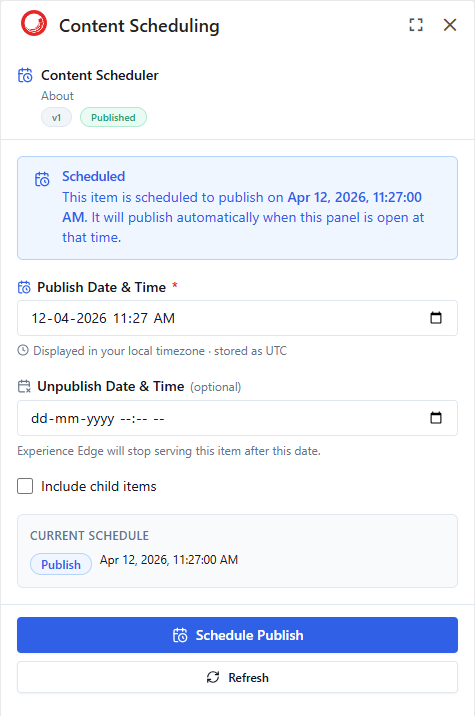
Short version: Write__Publish Dateto the item. For a future date, the panel saves the schedule tolocalStorageand sets a client-side timer. When the timer fires, it callspublishItemonly then does the item reach Experience Edge. For a past date,publishItemis called immediately. The scheduling is enforced by the browser timer, not by Experience Edge.
How Does Scheduled Publishing Actually Work in XM Cloud?
The key thing to understand: __Publish Date does not trigger a publish. It is just a field.
The schedule fields:
| Field | GUID |
|---|---|
__Publish Date |
{D9CF14B1-FA16-4BA6-9288-E8A174D4D522} |
__Unpublish Date |
{975170FC-3DC4-4CAE-BF03-634DB8B73D11} |
These are standard fields on every Sitecore item. Writing to them stores metadata. Nothing else happens.
The actual publish:
You need to call the publishItem mutation on the Authoring GraphQL API. That sends a job to the Publishing Engine, which pushes content to Experience Edge. Without that mutation, the date fields are decoration.
The complete flow:
- Write
__Publish Date/__Unpublish Dateto the item viaupdateItem - If the date is in the future: save to
localStorage, start a client-side timer - When the timer fires (or on page reload if the tab was closed): call
publishItem
How the scheduling actually works:publishItemis deliberately not called immediately for future dates doing so would push the item to Experience Edge right away, with no delay. Instead, the panel holds the schedule client-side: asetTimeoutfirespublishItemat the exact scheduled time. If the tab is closed before then,localStoragerecords the pending schedule; on next reload the panel detects the missed time and triggerspublishItemimmediately. Experience Edge is not what enforces the schedule the browser timer is. This means the publish only happens reliably if the panel is open (or gets reopened) around the scheduled time.
What Is the App Architecture?
Three layers, two APIs:
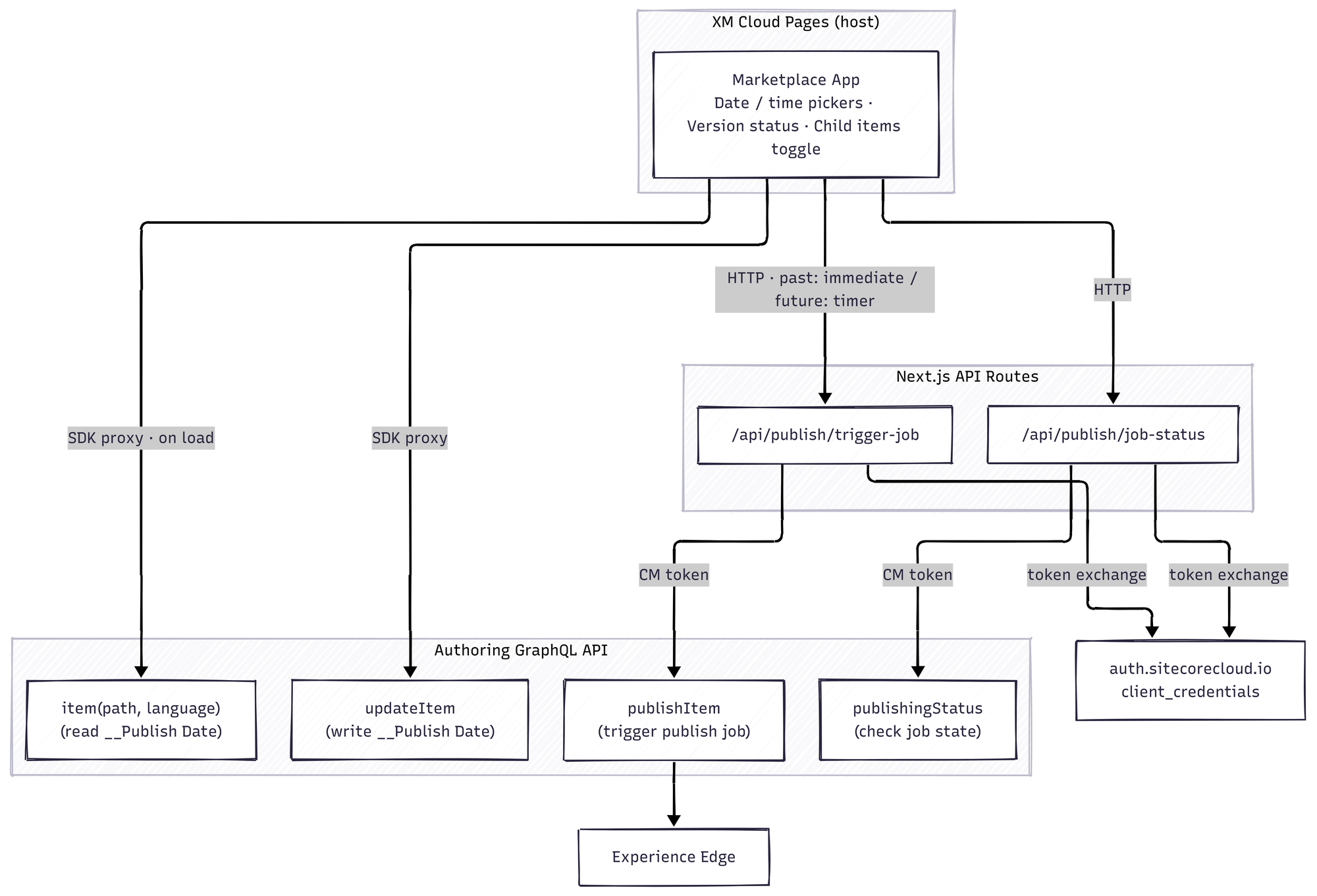
The React panel uses the Marketplace SDK to read and write item fields. For publish jobs that need a CM token, it goes through a Next.js API route that handles token exchange server-side. Tokens never reach the browser.
How Does Authentication Work in a Marketplace App?
The Marketplace SDK proxies all HTTP calls through the host XM Cloud window via postMessage. The token lives in the host your app never sees it. That is why xmc.authoring.graphql mutations just work without any token setup on your end.
One SDK method for both reads and writes. The SDK exposes a single client.mutate("xmc.authoring.graphql", ...) method for the Authoring GraphQL channel it handles both queries and mutations. There is no separate client.query() path for Authoring GraphQL. The params.body takes the standard { query, variables } GraphQL request shape regardless of operation type.
Where you do need a token: checking the status of a specific publish job by operation ID. That is handled server-side with a client_credentials exchange:
let tokenCache: CachedToken | null = null;

export async function getAccessToken(
  clientId: string,
  clientSecret: string,
): Promise<string> {
  const now = Date.now();
  if (tokenCache && tokenCache.expiresAt - now > 30_000) {
    return tokenCache.accessToken;
  }

  const response = await fetch("https://auth.sitecorecloud.io/oauth/token", {
    method: "POST",
    headers: { "Content-Type": "application/json" },
    body: JSON.stringify({
      client_id: clientId,
      client_secret: clientSecret,
      audience: "https://api.sitecorecloud.io",
      grant_type: "client_credentials",
    }),
  });

  const data = await response.json();
  tokenCache = {
    accessToken: data.access_token,
    expiresAt: now + (data.expires_in ?? 86400) * 1000,
  };

  return tokenCache.accessToken;
}
The 30-second buffer means you almost always hit cache. First request per server process pays the ~200ms exchange cost; everything after is free.
Your .env.local:
PUBLISHING_API_URL=https://xmc-yourinstance.sitecorecloud.io
AUTOMATION_CLIENT_ID=your-client-id
AUTOMATION_CLIENT_SECRET=your-client-secret
Get these from XM Cloud Portal → your environment → Automation.
How Do You Write Schedule Fields and Trigger a Publish?
Step 1: Write the schedule fields:
const UPDATE_ITEM_SCHEDULE_MUTATION = /* GraphQL */ `
  mutation UpdateItemScheduleFields(
    $itemId: ID!
    $language: String!
    $version: Int!
    $fields: [FieldUpdateInput!]!
  ) {
    updateItem(
      input: {
        itemId: $itemId
        language: $language
        version: $version
        fields: $fields
      }
    ) {
      item {
        id
        name
      }
    }
  }
`;
Step 2: Trigger the publish:
function buildPublishItemMutation(
  publishMode: "SMART" | "FULL",
  publishSubItems: boolean,
) {
  return /* GraphQL */ `
    mutation PublishItem(
      $rootItemId: ID!
      $languages: [String!]!
      $targetDatabases: [String!]!
    ) {
      publishItem(input: {
        rootItemIds: [$rootItemId]
        languages: $languages
        targetDatabases: $targetDatabases
        publishItemMode: ${publishMode}
        publishSubItems: ${publishSubItems}
        publishRelatedItems: false
      }) {
        operationId
      }
    }
  `;
}
How Do You Handle Timezones in a Scheduling UI?
datetime-local inputs return values like 2026-04-10T09:00 no timezone info at all. If you pass that directly to your API, you have no idea what timezone the user was in.
Fix: treat it as the user's local time, convert to UTC immediately, store UTC.
// User picks 9:00 AM local (e.g. BST = UTC+1)
const localString = "2026-04-10T09:00";

// parseISO treats this as local time, formatISO adds the offset
const utcIso = formatISO(parseISO(localString), { representation: "complete" });
// → "2026-04-10T08:00:00+00:00"
Displaying it back: parseISO respects the stored offset and format renders in the browser's local timezone automatically.
format(parseISO("2026-04-10T08:00:00Z"), "yyyy-MM-dd'T'HH:mm");
// → "2026-04-10T09:00" (in a BST browser)
Use date-fns for both directions and this stops being a problem.
How Do You Show Version and Publish Status?
The Marketplace SDK's pages.context subscription gives you isLatestPublishableVersion directly on pageInfo. No extra query needed.
client.query("pages.context", {
  subscribe: true,
  onSuccess: (res: PagesContext) => setPagesContext(res),
});
The panel uses this to show two states:
v3·Published- this version is live on Experience Edgev3·Unpublished changes- there are edits that have not been pushed
Editors stop asking "is my draft live?" which accounts for most scheduling-related support requests.
What Happens If the Publish Date Is in the Past?
publishItem publishes immediately regardless of what date you write to __Publish Date. So if an editor enters a date that has already passed, the item publishes the moment they click the button with no delay.
The panel detects this and shows a warning before the editor submits:
{publishDateInPast && (
  <div className="flex items-start gap-1.5 text-xs text-warning-foreground">
    <AlertTriangle className="h-3.5 w-3.5 shrink-0 mt-0.5" />
    <span>
      This date is in the past. The item will publish immediately
      when you click Schedule Publish.
    </span>
  </div>
)}
The success message also distinguishes between a future-dated and a past-dated submit:
const scheduledFor = isPast(schedule.publishDate)
  ? `${format(schedule.publishDate, "PPpp")} - published immediately (date is in the past)`
  : format(schedule.publishDate, "PPpp");
This is especially useful for editors migrating existing content who might set historical dates accidentally.
Does It Support Publishing Child Items?
Yes. Default is single item only most scheduling is for one page and you do not want to kick off a full subtree publish every time. But sometimes you do, so there is a checkbox:
<input
  type="checkbox"
  title="Include child items in the publish job"
  checked={publishSubItems}
  onChange={(e) => setPublishSubItems(e.target.checked)}
/>
<Label htmlFor="publish-sub-items">Include child items</Label>
Maps directly to publishSubItems: true/false in the mutation.
Setup
git clone https://github.com/gowthamaraja/xmc-content-scheduler.git
cd xmc-content-scheduler
npm install
.env.local:
PUBLISHING_API_URL=https://xmc-yourinstance.sitecorecloud.io
AUTOMATION_CLIENT_ID=your-automation-client-id
AUTOMATION_CLIENT_SECRET=your-automation-client-secret
npm run dev
To use inside XM Cloud Pages: deploy to Vercel (or any Next.js host), then register the app in the Sitecore Marketplace with your Pages Context Panel extension point URL.
Project structure:
src/
├── app/
│   ├── api/publish/
│   │   ├── trigger-job/route.ts   ← publish mutation + token exchange
│   │   └── job-status/route.ts    ← publishing status query
│   ├── pages-contextpanel-extension/page.tsx
│   └── layout.tsx
├── components/
│   └── SchedulerPanel.tsx         ← the panel UI
├── lib/
│   ├── publishing.ts              ← GraphQL + token logic
│   └── utils.ts
└── utils/
    └── hooks/
        └── useMarketplaceClient.ts  ← SDK init with retry + singleton
What Is Missing / What Could Be Added?
- Server-side schedule persistence: the panel currently uses
localStorageto remember the scheduled date across page reloads. This is browser-local, not multi-user, and silently breaks in strict iframe/cookie contexts. A lightweight server-side key-value store (e.g. Vercel KV) exposed via an API route would make the state persistent, multi-user, and browser-independent without requiring any changes to the Sitecore content template. Tracked as a future improvement. - Unpublish enforcement:
__Unpublish Dateis stored and respected by Experience Edge, but this app has no reminder or audit trail for upcoming unpublish events. A background job or webhook that alerts editors when content is about to expire would round this out. - Approval workflow: hook into XM Cloud workflow states before allowing a schedule.
- Bulk scheduling: schedule multiple items from a list view.
Can I Reschedule a Published Item?
Yes and it works without any extra code. The panel does not lock after a successful schedule.
How it works:
- After clicking Schedule Publish, the success alert appears but the date inputs remain editable.
- Change the publish date (or unpublish date). The moment you do, the success state clears and the Schedule Publish button re-activates.
- Click Schedule Publish again. The panel overwrites
__Publish Dateon the item with the new date and fires a freshpublishItemjob.
One thing to understand: if the original publish date was in the future, publishItem has not fired yet the item has not reached Experience Edge. Rescheduling overwrites __Publish Date on the item, clears the old timer, saves the new date to localStorage, and starts a fresh countdown. The new publishItem call will fire when the updated date arrives.
What the code does under the hood:
// handlePublishDateChange resets status on every edit after a successful schedule
function handlePublishDateChange(value: string) {
  setSchedule((prev) => ({ ...prev, publishDate: parseDatetimeLocal(value) }));
  if (status.type === "success" || status.type === "error") {
    setStatus({ type: "idle" }); // ← re-enables the Schedule Publish button
  }
}
The button's disabled state is !canSchedule, and canSchedule is true as long as a publish date is set and no request is in flight so any edit after success immediately re-enables it.
Frequently Asked Questions
Does __Publish Date automatically trigger a publish in XM Cloud?
No. __Publish Date is a metadata field. It stores the intended publish date but does not trigger anything. You must call the publishItem mutation separately to push the item to Experience Edge.
What is the correct targetDatabases value for XM
Always ["experienceedge"]. XM Cloud does not have a "web" or "master" target database for publishing. Using anything else results in a 500 error about missing database configuration.
Can I call publishItem from the browser directly?
Not in this implementation. publishItem requires a CM Bearer token, which must be obtained server-side via a client_credentials exchange. This app routes it through a Next.js API route (/api/publish/trigger-job) that handles the token exchange and fires the mutation. The Marketplace SDK proxy (which handles auth transparently via postMessage) is used only for updateItem field reads and writes that don't need a separate token.
Why does my GraphQL mutation fail with a type mismatch on publishItemMode?
publishItemMode is a GraphQL enum (SMART, FULL), not a string. You cannot pass it as a variable, it must be inlined into the mutation string.
How do I get the Automation Client ID and Secret for XM Cloud?
Go to XM Cloud Portal → select your environment → Automation. The client ID and secret for client_credentials token exchange are generated there.
Can this app do true scheduled publishing (e.g. publish at a future time automatically)?
Yes, with an important caveat: scheduling is enforced client-side, not server-side. When you pick a future date and click Schedule Publish, the panel writes the date fields to the item and sets a browser setTimeout. When the timer fires, it calls publishItem only then does the item reach Experience Edge. If the panel tab is closed before the scheduled time, the publish won't fire until an editor reopens the panel (the missed schedule is detected via localStorage and the job triggers on reload). For guaranteed unattended publishing you would need a server-side cron job that calls publishItem at the right time.
Can I reschedule an item after it has already been scheduled?
Yes. The panel does not lock after a successful schedule, the date inputs stay editable. Change the publish (or unpublish) date, and the button re-activates. Clicking Schedule Publish again overwrites __Publish Date on the item and triggers a new publish job with the updated date. See the "Can I Reschedule a Published Item?" section above for the full walkthrough.
What happens if I enter a publish date that is already in the past?
The panel detects this and shows a warning before you submit. When you click Schedule Publish, the item is published immediately (not at the past date). The success message also notes "published immediately (date is in the past)" so there is no ambiguity.
Why does client.mutate() handle both queries and mutations?
The Marketplace SDK exposes a single client.mutate("xmc.authoring.graphql", ...) method for the Authoring GraphQL channel. It accepts a standard { query, variables } body and works for both read and write operations. There is no separate client.query() path.
The patterns here SDK proxy for field mutations, server-side token exchange, "experienceedge" as the only publish target apply to any Marketplace App touching the publishing layer.
Code is open in Github. Fork it, raise issues, send PRs. If you are building something in the Marketplace ecosystem or running into scheduling pain on XM Cloud, drop a comment or reach out on LinkedIn.